Turning on two-step sign-in for the accounts that matter
A password alone fails the day it leaks. A second step stops most of the people holding it, and the inbox is the place to start.
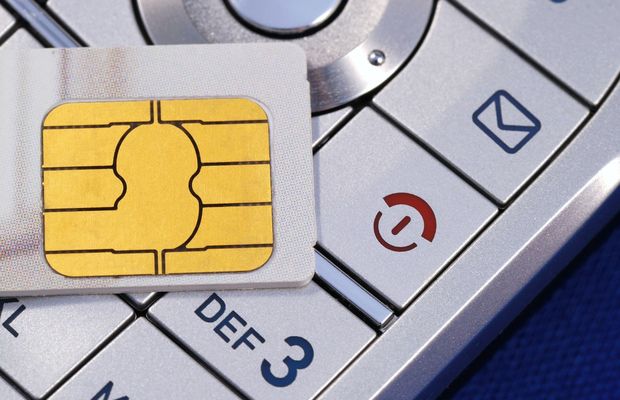
Plenty of account takeovers begin with a password that leaked from some other site where it had been reused. Two-step sign-in, which services also call two-step verification, two-factor authentication or MFA, asks for something besides the password, usually a code or a tap on a phone you already carry. It takes a few minutes per account to switch on, and the order you work in matters more than people expect.
Start with email
Email comes first because every other account trusts it. A “forgot password” link lands in your inbox, so whoever controls the inbox can reset the bank, the shop and the social accounts one after another. After email, protect the accounts that hold money or can spend it, then the account your phone runs on (Google for Android, Apple Account for iPhone), then anything storing photos or files you could not replace.
The steps, account by account
Menus move from time to time. These are the paths the vendors’ own help pages gave in October 2026.
- Google. Open your Google Account, choose Security & sign-in, and under “How you sign in to Google” select Turn on 2-Step Verification. Google’s help page covers the screens that follow.
- Microsoft. Sign in at account.microsoft.com/security, select Manage how I sign in, then under Additional security and Two-step verification choose Turn on. Microsoft’s instructions recommend keeping three pieces of security info on the account, because losing all of them can mean waiting 30 days to get back in.
- Apple. On an iPhone or iPad, open Settings, tap your name, then Sign-In & Security, and turn on two-factor authentication. Most Apple Accounts already have it, since Apple now makes it the default.
- Everything else. Look in the account settings under a heading such as Security, Sign-in or Privacy and security.
App codes, text messages and passkeys
Second steps are not equally strong. CISA’s page on multifactor authentication, written for small businesses but just as true at home, ranks the options from strongest to weakest: a security key, an authenticator app that asks you to match a number, an authenticator app showing a one-time code, biometrics, and finally a code sent by text or email, to be used only when nothing stronger is offered.
The trouble with a text message is the phone number behind it. Someone who talks a carrier into moving your number to their SIM card receives your codes as well. Google says its sign-in prompts help protect against that kind of SIM swap, and Microsoft has announced that it is phasing out text-message codes for personal accounts, calling them a leading source of fraud.
An authenticator app generates a fresh code every 30 seconds on the phone itself, with no signal needed. CISA’s mobile guidance for people at high risk of targeting adds a catch that applies to everyone: enrolling an app does not automatically remove the text-message option already on the account. Check the list of methods afterwards and take the phone number off if the service allows it.
A passkey goes further. It replaces the password with a key held on your phone or computer and unlocked with a fingerprint, your face or a PIN, and a phishing page cannot collect it the way it collects a typed password. Google and Microsoft both let you add one from the same security pages, and Google notes that a passkey sign-in skips the separate second step.
Backup codes
Every method above depends on a device that can be lost, broken or reset. Backup codes are the way back in when that happens. Google issues 10 at a time, each good for one sign-in, and generating a new set cancels the old ones. Microsoft’s equivalent is a single 25-digit recovery code. Apple offers an optional 28-character recovery key with a hard rule attached: turn it on, lose it, and the account can be locked permanently.
Where they are kept is where most people go wrong. A screenshot in the phone’s photo library disappears with the phone. Google suggests printing the codes and keeping them with a passport or other important papers, and Microsoft says not to store its code on any device you use to sign in. A printed sheet at home and a second copy somewhere else you trust covers most situations.
Before you close the settings page
Add a second method while you are there, such as a backup phone, a security key or an authenticator app alongside the prompts. Google’s own advice is to enroll more than one form of 2-Step Verification so a single lost phone cannot lock you out.